03/02/2026 3:39 pm
Topic starter
Community
Connect with us and enhance your M-Files experience using Extension Kit for M-Files. Here is how to get started.

Notifications
Clear all
0

Hi everyone
I’ve been looking into the Document Processing → Restore Original / Sync File Names With Object Title action in Extension Kit for M-Files and I can restore original file names or sync file names with previous object titles. The documentation shows how to configure wildcards to scope which files are affected — but it doesn’t mention anything about selecting a specific version based on workflow state (for example: restore the last version where workflow status was “Freigegeben”/Approved).
My question:
Is there a way to target a specific version for restore (e.g. the last version that had workflow status = Approved), not just the latest version matching a wildcard?
Here’s what I understand so far:
-
The “Restore original” action works on the current object and just reverts files in a first run to the last document which wasnt a PDF. Second run on the same object just restores a PDF...
-
The configuration options are limited to filename wildcards — no built-in parameter appears to specify a target version number or a property filter like workflow status.
So the question is:
Does Extension Kit offer a way to select/trigger a restore for a specific historical version based on workflow status or version metadata (e.g. Approved)?
Or is the only way to achieve this via standard M-Files rollback or a custom combination of versioning + property rules?
Would love to hear if someone’s configured this or has ideas how to implement it cleanly.
Cheers
Daniel
3 Answers
0
04/02/2026 8:57 am

Hi Daniel,
Thank you for sharing your case and idea with our community! Unfortunately, Extension Kit Core does not support replacing a file with a previous version, but we truly appreciate the suggestion and will consider it for future development.
In the meantime, a neat workaround I can suggest is to trigger an Object Operations rule once the document is approved. This rule would create an object of a different class (e.g. Approved Documents) that is used solely to store approved versions. The configuration is shown below:
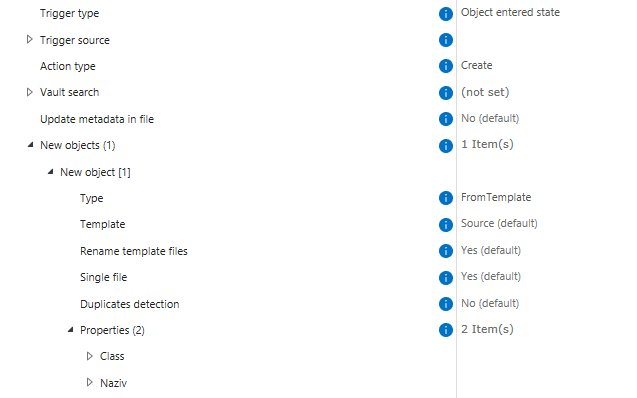
In Object Operations, you can also configure the newly created object to be stored as a reference on the original object, so no additional rule is needed for that.
When you want to roll back, you can use this reference in combination with a Document Processing rule with the Replace File state action. Would this workaround be suitable for you?
Best regards,
Nika
0
05/02/2026 1:28 pm
Topic starter
Hey
No, we really want a rollback function on a document. Maybe a Feature Request for future features.
Could you please explain, how "Restore Original" works?
Cheers
Daniel
0
06/02/2026 2:26 pm
Hi Daniel,
Restore Original should always look for the most recent version in the history with the version label RestoreOriginal. If it does not find one, it then searches for the most recent editable document.
Thanks to your detailed testing, we discovered a bug in this state action: instead of returning the version labeled RestoreOriginal, it returns the version before it.
This is why the first run works correctly - there is no RestoreOriginal version label in the history, so the system returns the most recent editable version. However, on the second run, when version n is labeled RestoreOriginal, the expected result is to return version n, but our code incorrectly returns version n-1.
A work item to resolve this bug has already been created. You can track the fix in our release notes under item 2832.
Best regards,
Nika